
Calling a web API and saving the result for further analysis is a common scenario for Data Engineers. Microsoft Fabric brings together many capabilities into a unified platform and we have several ways to query and store data from API:s within Fabric.
In part one of this series we used a Notebook in Fabrick and PySpark to load data from a web API. This time we will use a Data Pipeline to load data from a REST API and store the result in a Delta Table.
The steps in this guide are:
- Create a new Data Pipeline
- Create and configure the Copy data activity
- Configure the Destination
- Run the Pipeline and validate the data
Prerequisites
For this lab you need a Fabric Capacity. If you do not yet have one you can sign up for a free trial.
We also need an API endpoint that returns some data. A free and easy one to use are the Reqres public REST API. The response from the API will be in JSON format.
Step 1 – Create a new Data Pipeline
A Data Pipeline in Fabric Data Factory can run activities that perform data movement, data transformation, and many other operations. The activites are displayed on a canvas and you can to connect activites in chains to perform more complex tasks.
Data Factory are also a stand alone service in Azure but the difference is that when using the built in Data Factory in Fabric we have more seamless access to other services in Fabric such as the Lakehouse used for storage.
When a pipeline is started the activites will execute in order byt the Data Factory or. The Pipelines can be used on its own or call other services to perform tasks and wait for the result.
Create a Data Pipeline:
- Go to your Fabric Capacity by signing in with your Microsoft account at https://app.fabric.microsoft.com/ (trail available as of March 2024).
- Click Workspaces and select or create one.
- In the Workspace press “+ New” and select Data Pipeline.
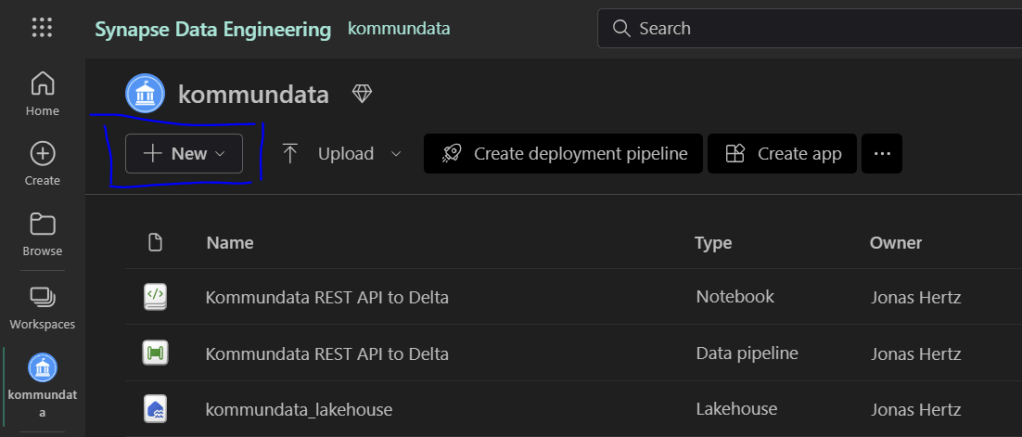
We now have a Data Pipeline where we can add activites to move data for us.
Step 1 – Create and configure the Copy data activity
The Copy data activity will be where we call the REST API and stores the result in a Blob Storage.
- From your newly created Pipeline add a Copy data activity by pressing “Add pipeline activity” or select “Activites” above the canvas and find the Copy data activity.
Step 2 – Configure the Source
- Select the activity and go to “Source”, select “External” as Data store type and press “+ New” button to create a new connection to the REST API.

- In the screen with connections search for REST and select the REST connection and fill in the Base Url https://reqres.in/api/users?page=2.

After the Connection is created we are back at the Copy data activity and you can also press test connection and preview data to make sure the API works.
Step 3 – Configure the Destination
Now we need to configure where the data from the REST API should be stored. Our intention is to have it as a Delta Table in a Lakehouse and this needs to be added as a destination in the Copy data actibity:
- Select the Copy data activity and click “Destination” tab under the canvas.
- Add the following settings:
Data store type: Workspace
Workspace data store type: Lakehouse
Lakehouse: Select one or create a new one by pressing “+ New”
Root folder: Tables
Table name: give the table a name
Table action: Overwrite
- When you are done press “Save” and from the menu above the canvas.

Note that if your API returns a JSON file that the Copy Activity cannot immediately map to Delta Table you may need to introduce an extra step. In that case save the output as text or binary format first and then load and map the file to a Delta Table with a second copy activity.
Step 4 – Run the Pipeline and validate the data
In the final step we want to run the pipeline and validate that we have loaded data to our Lakehouse table.
- From the menu above the canvas click “Run”.
- Data Factory will open the Output tab where we will see the Activity status go from “Queued” to “In progress” to “Succeeded”

- To see the result go back to the Workspace where your Lakehouse was located and qlick it in the list of resources.
- In the Lakehouse tab expand Tables and click the table you just created. Fabric will automatically show you a preview of the data in the table!

Conclusion
We have created a simple test in Fabric that reads data from a REST API and stores the result in a Delta Table in a Lakehouse using a Data Factory Pipeline.
In this case our REST API returned a response that the copy activity could immediately store into a table. If ou are not so fortunate you might need to store the result in a Blob storage as a binary or text file and then use another activity to transform the raw output to a format that can be stored in a Delta Table.
In a previous post we did the same thing but using only a notebook but both methods can also be used together by having a Pipeline run Notebooks!
 Business Intelligence Specialist | Jonas Hertz